




Understand
Use explanations, diagrams and references to make the topic clearer.
 TinkerPandaLearn. Level up. Have fun.

The living and breathing platform.
Understand the idea. Work with the system.
Build the confidence to do it again.
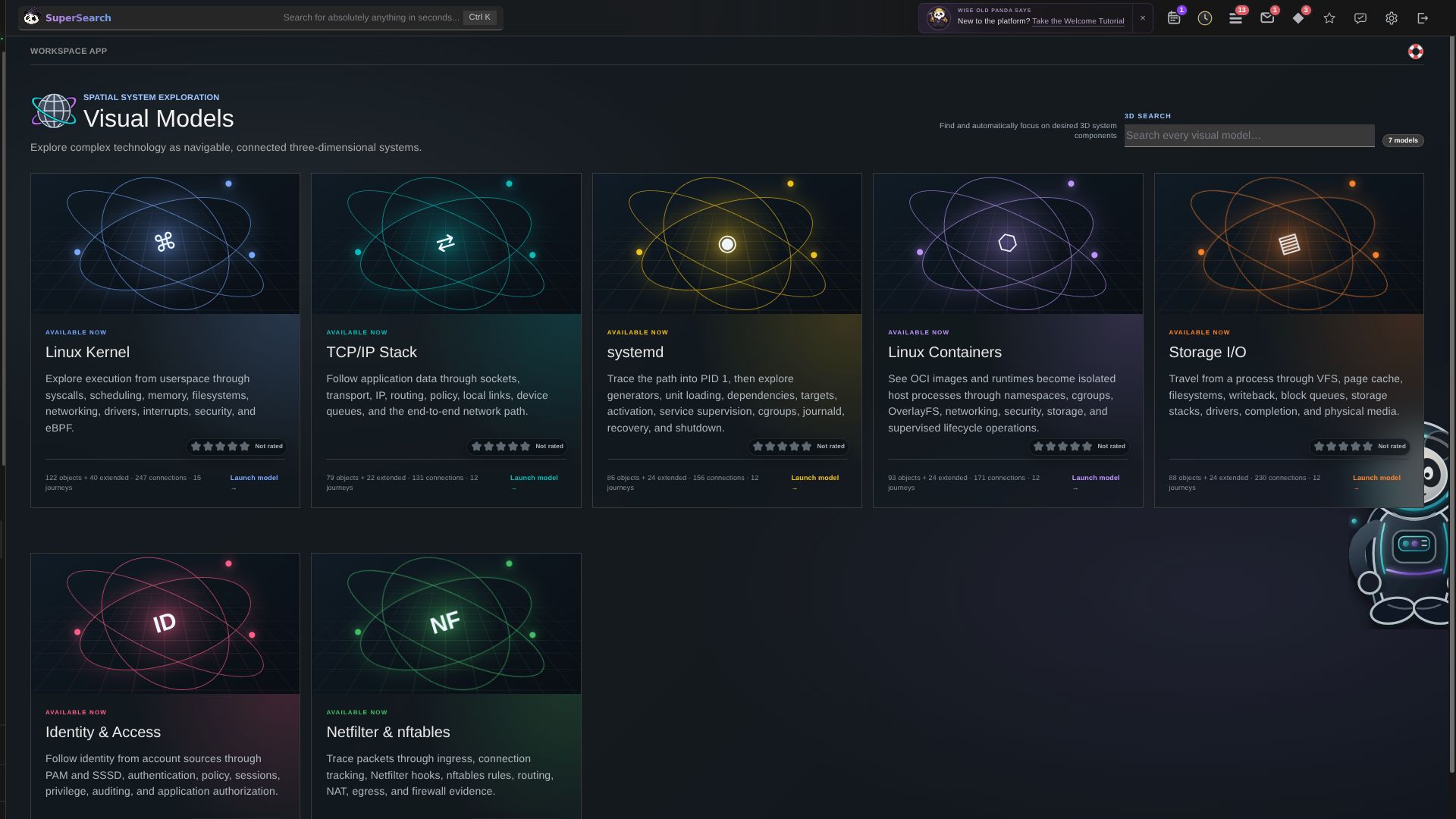
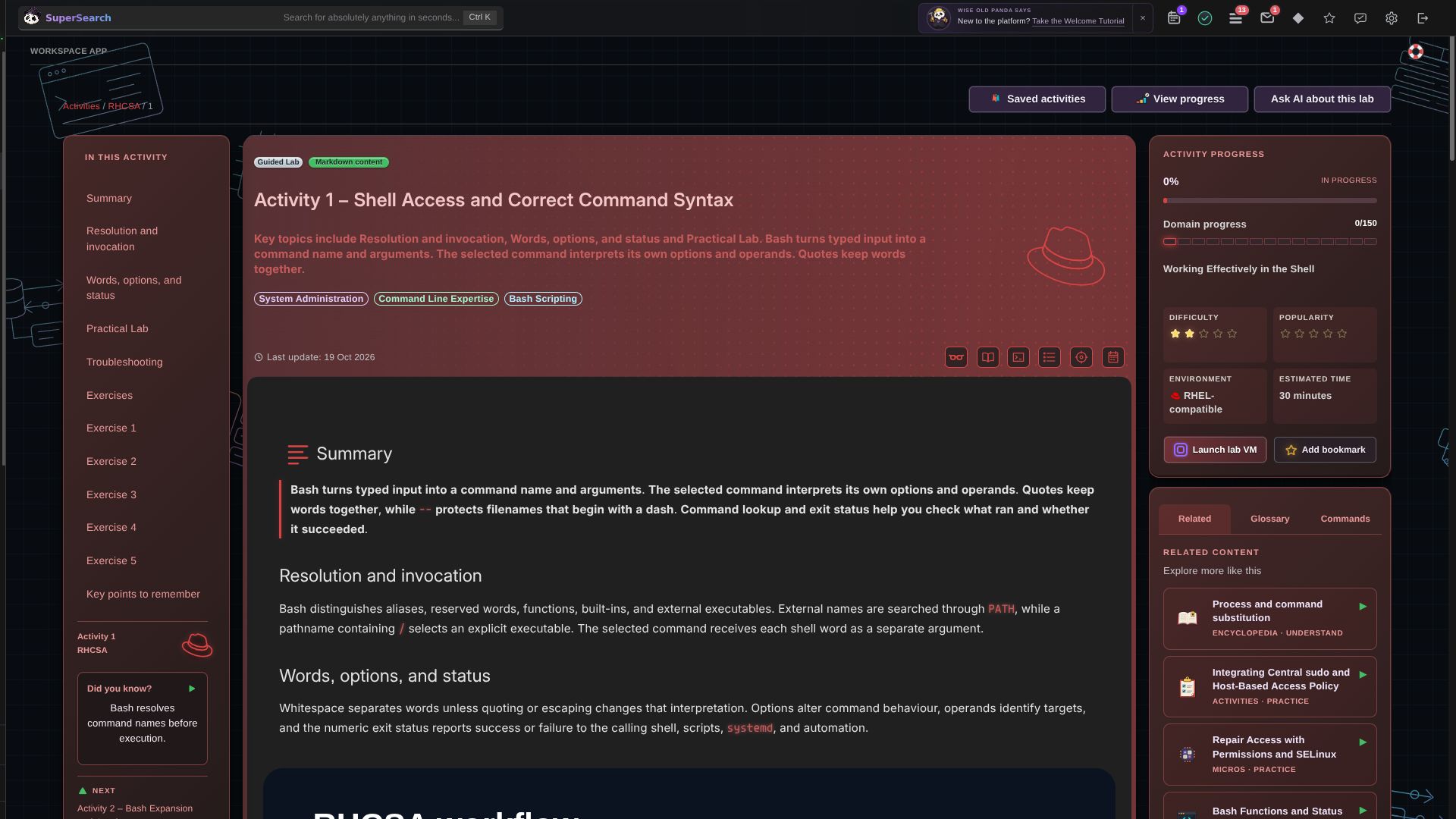
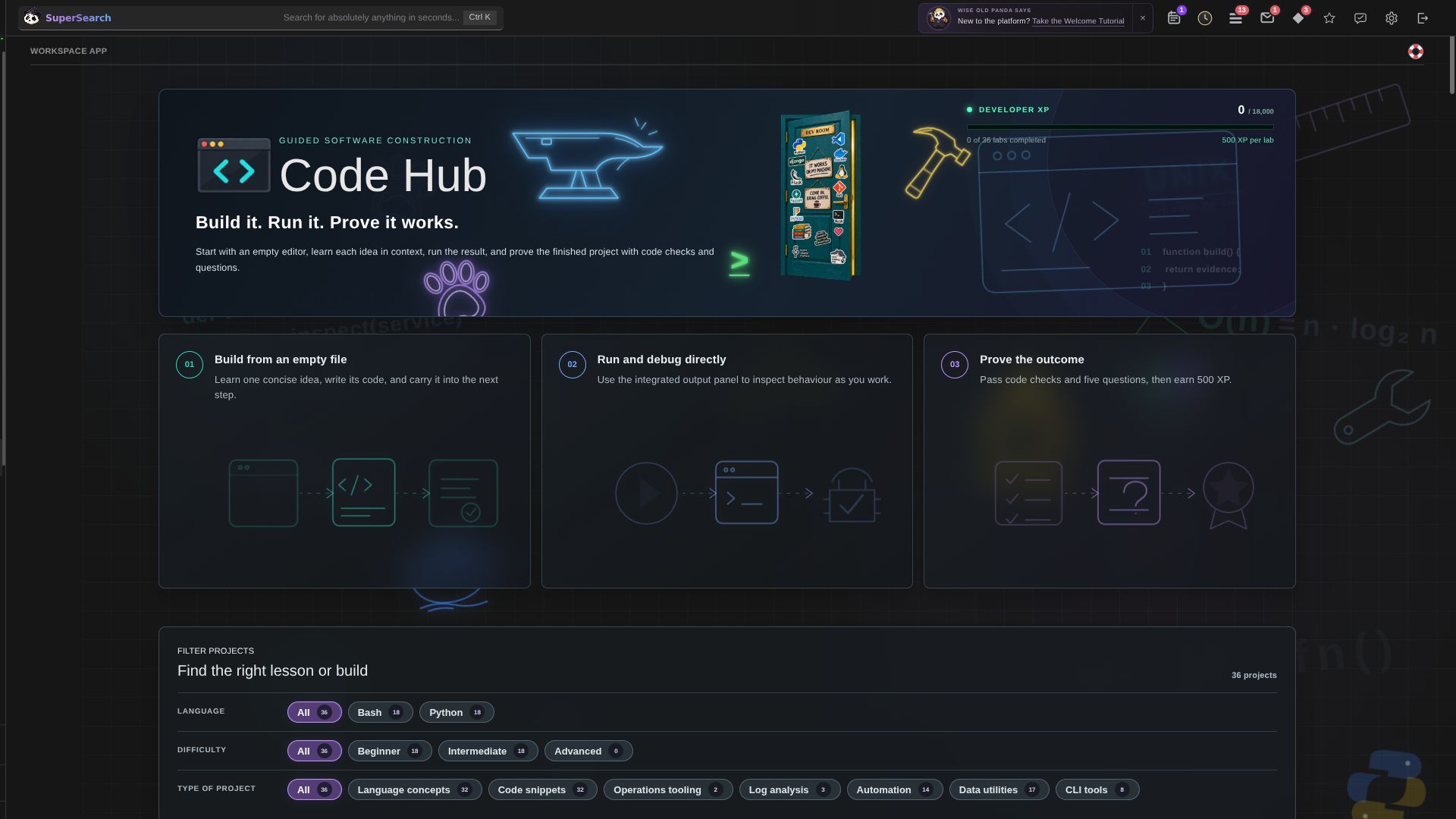
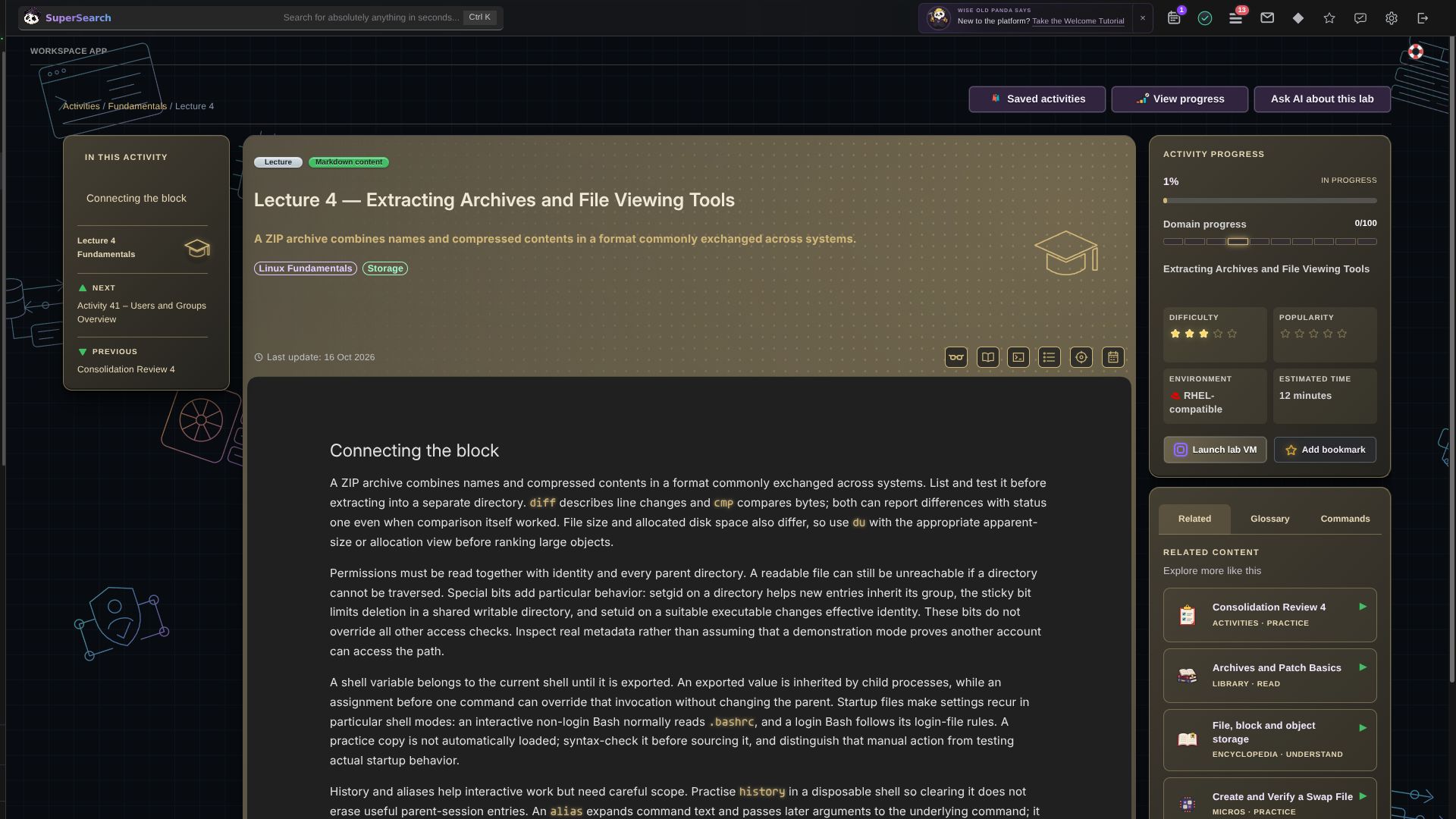
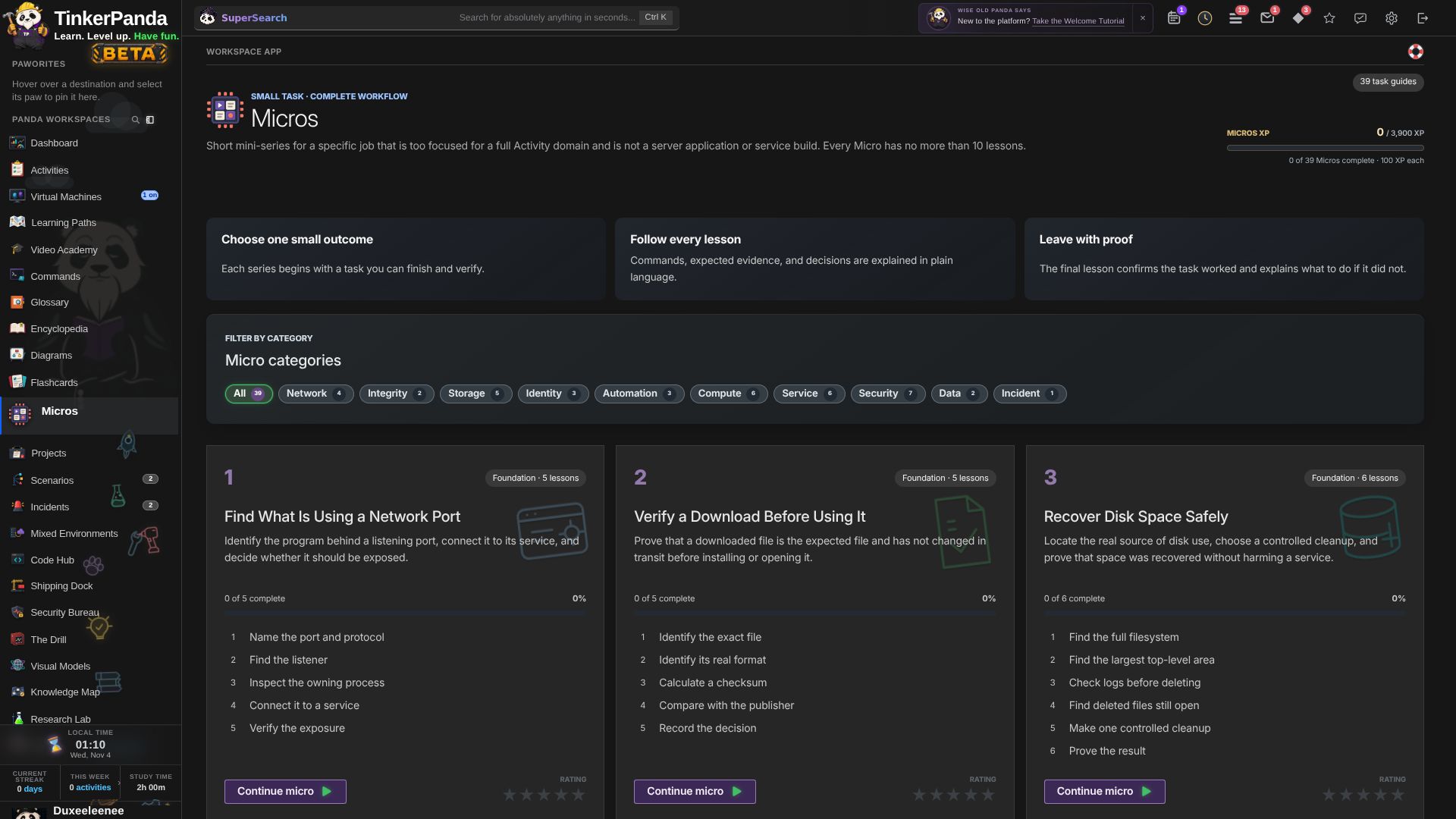
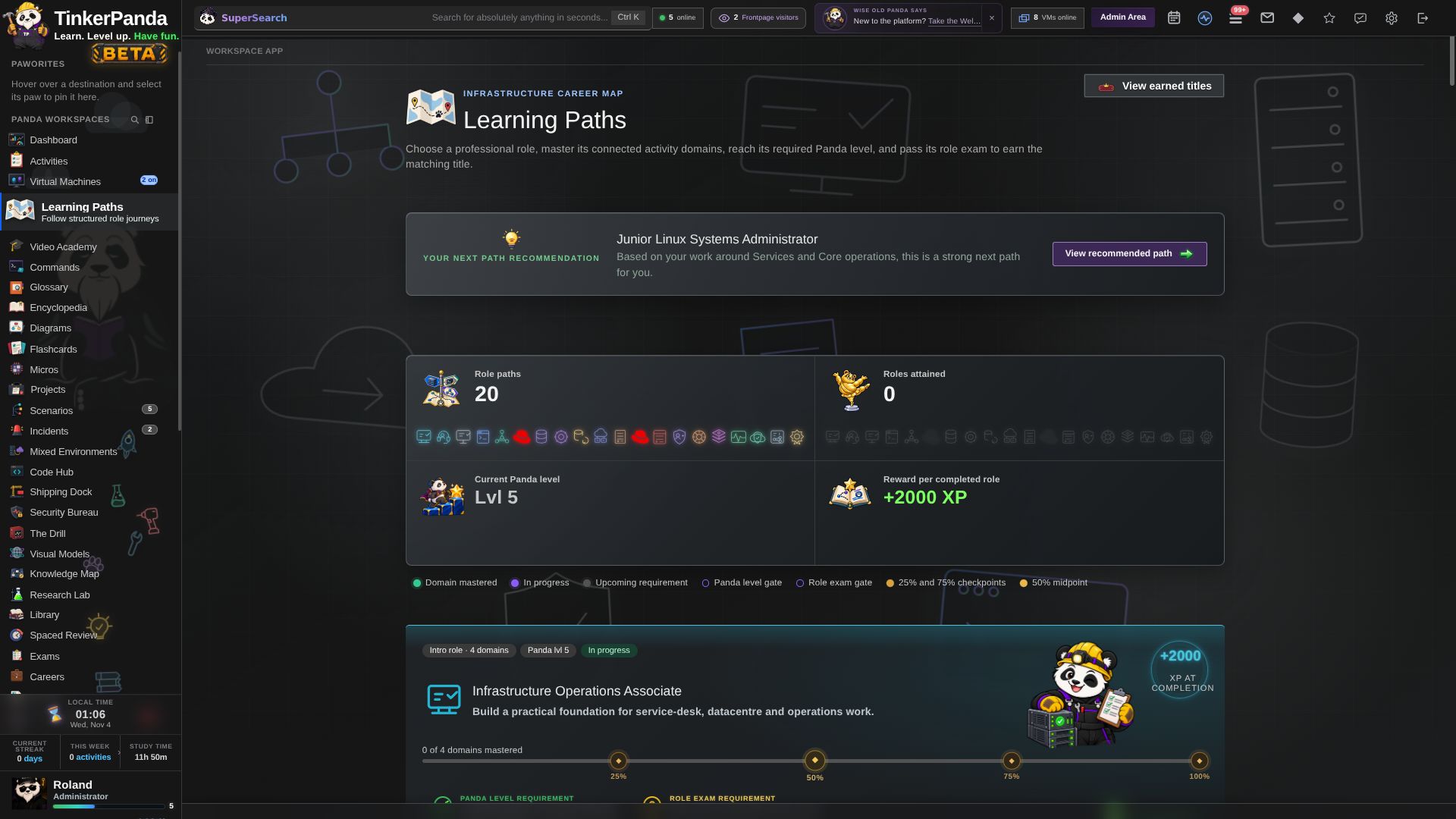
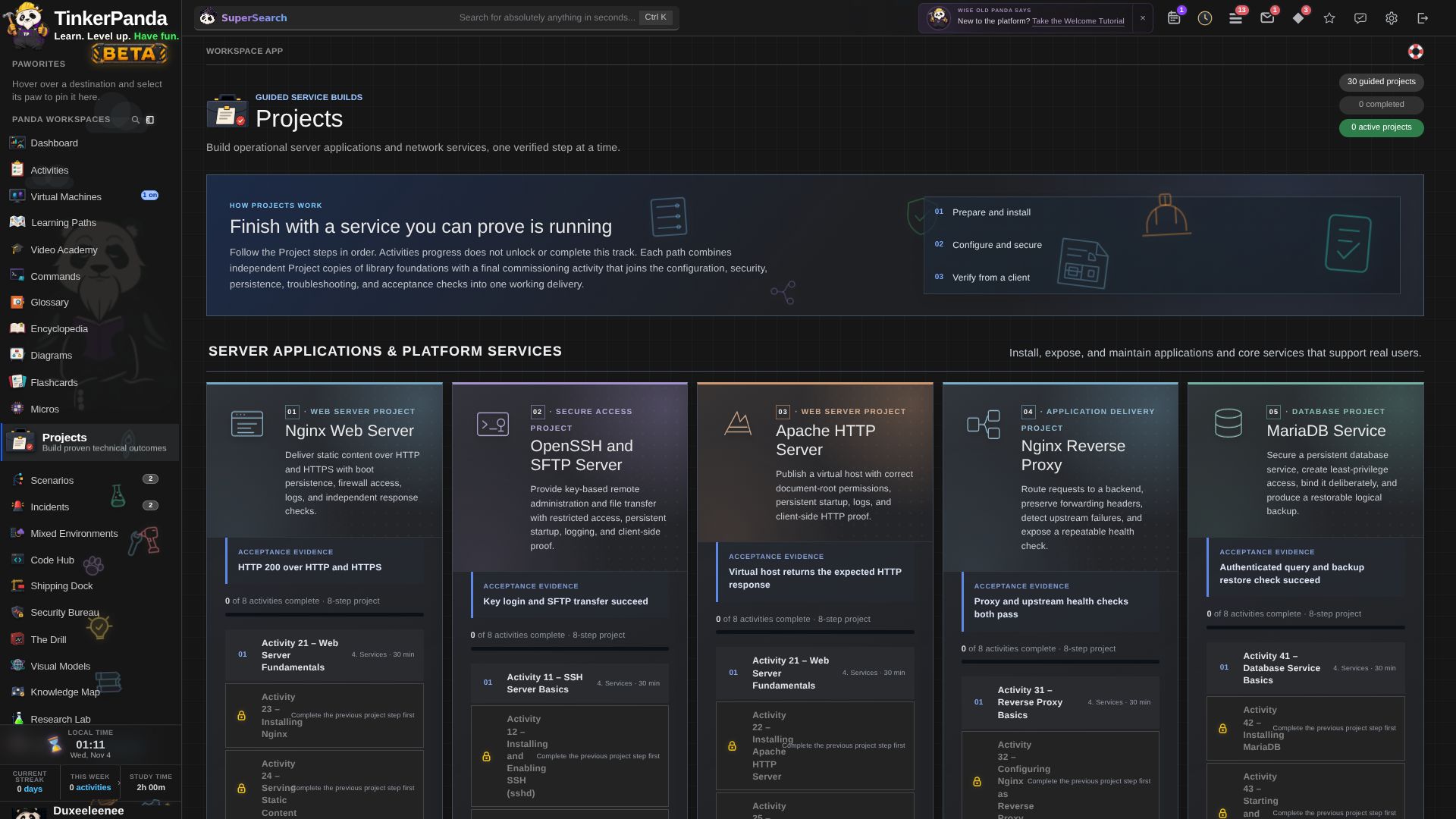
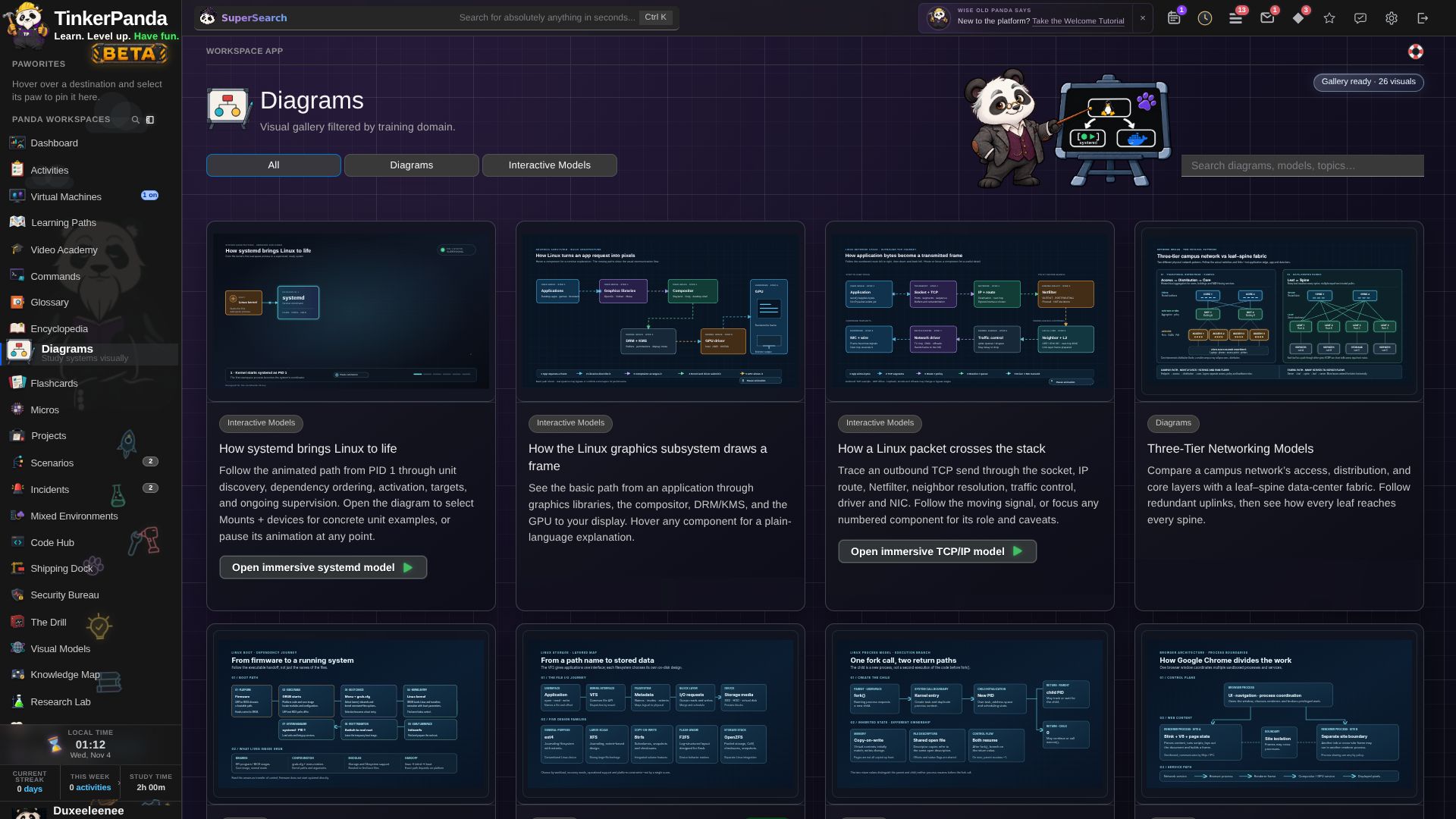
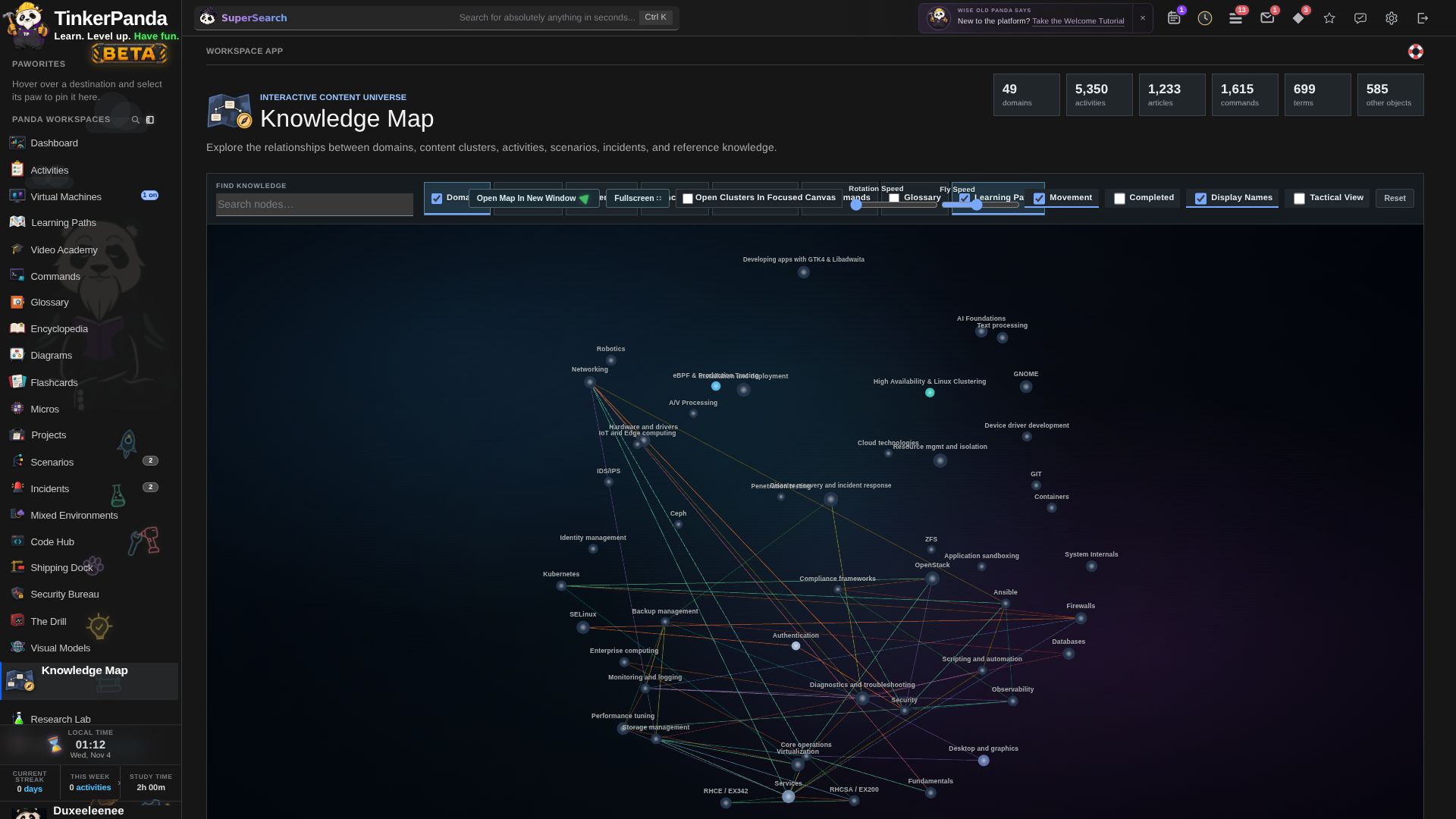
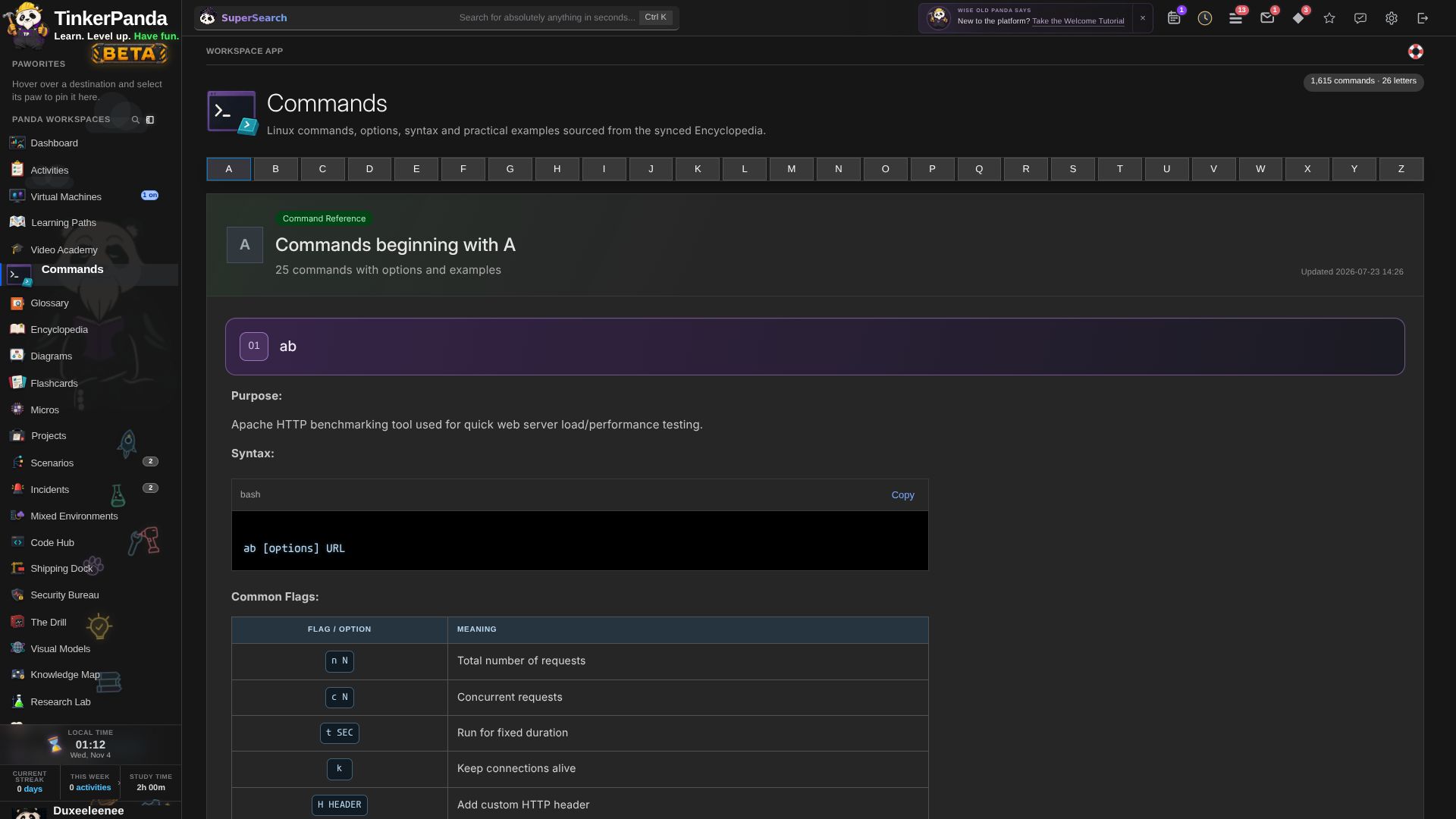
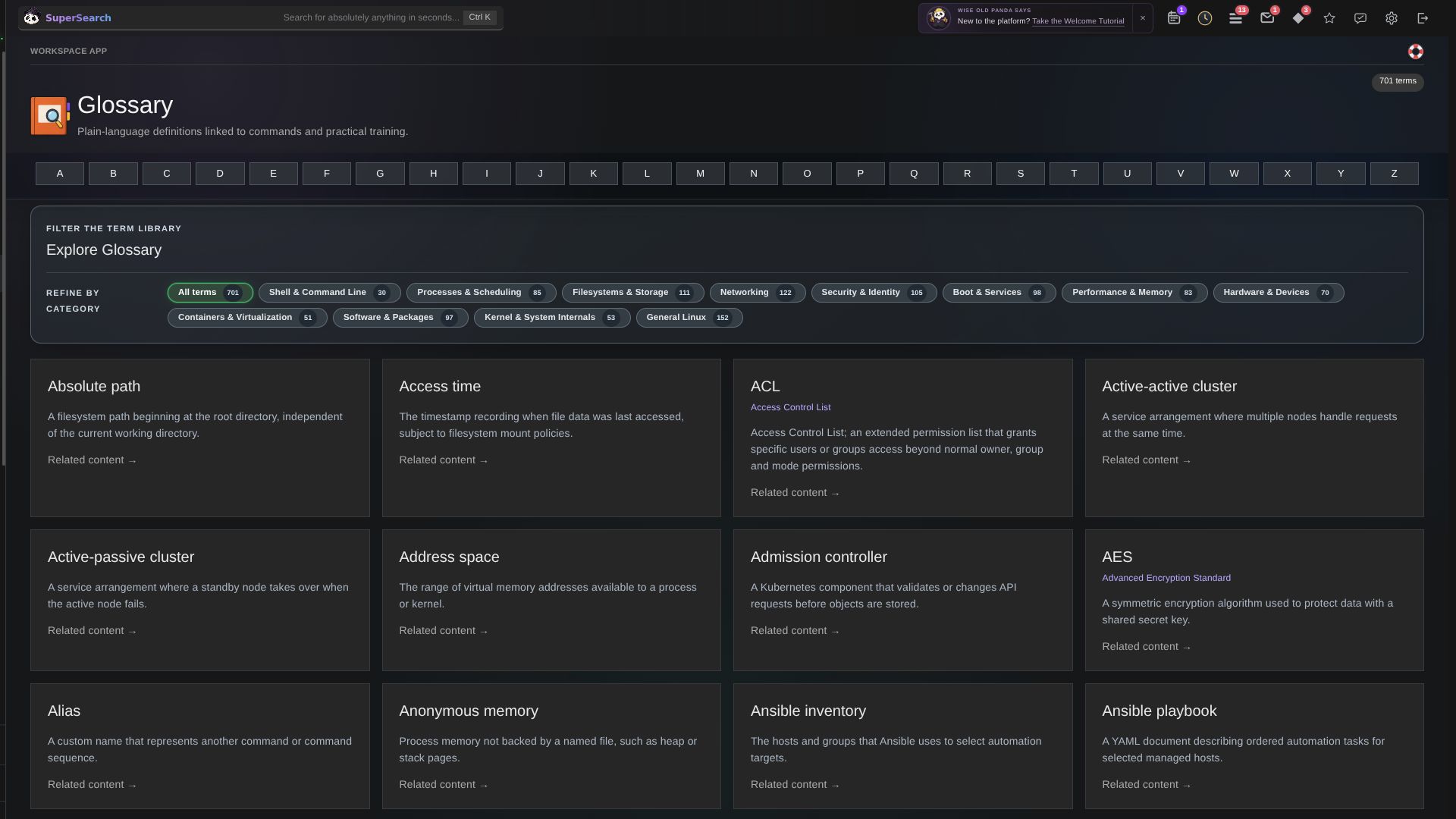
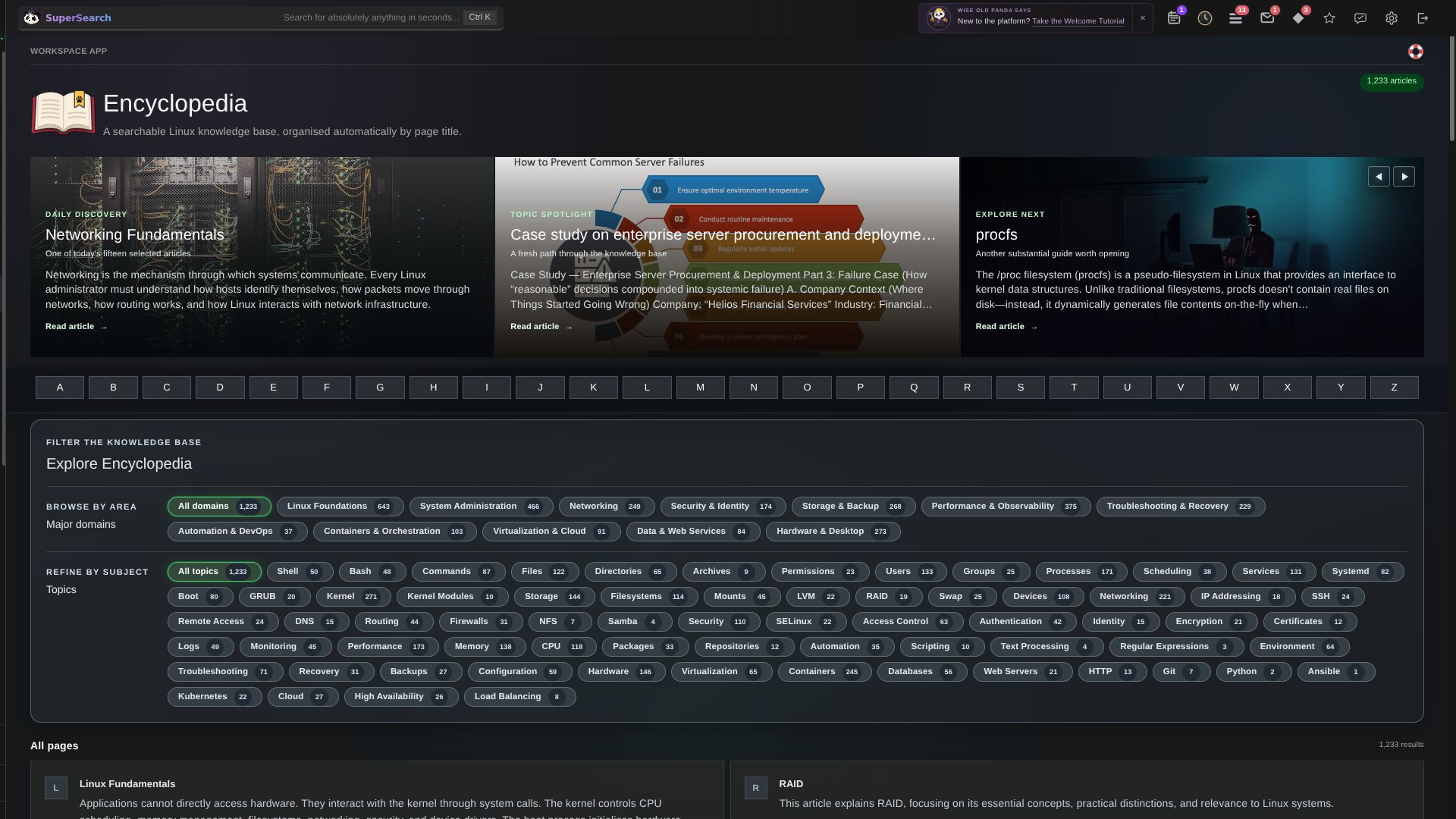
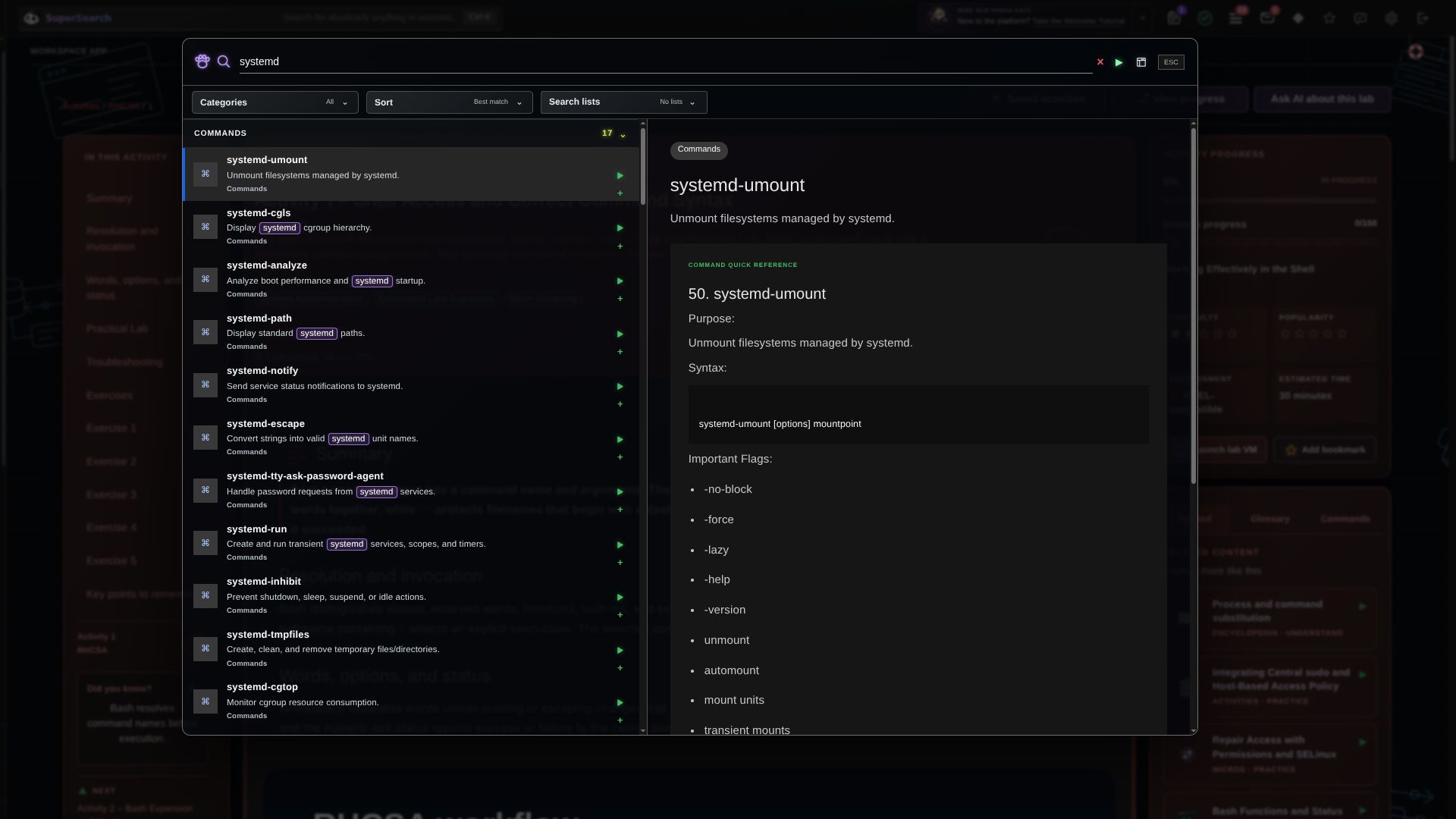
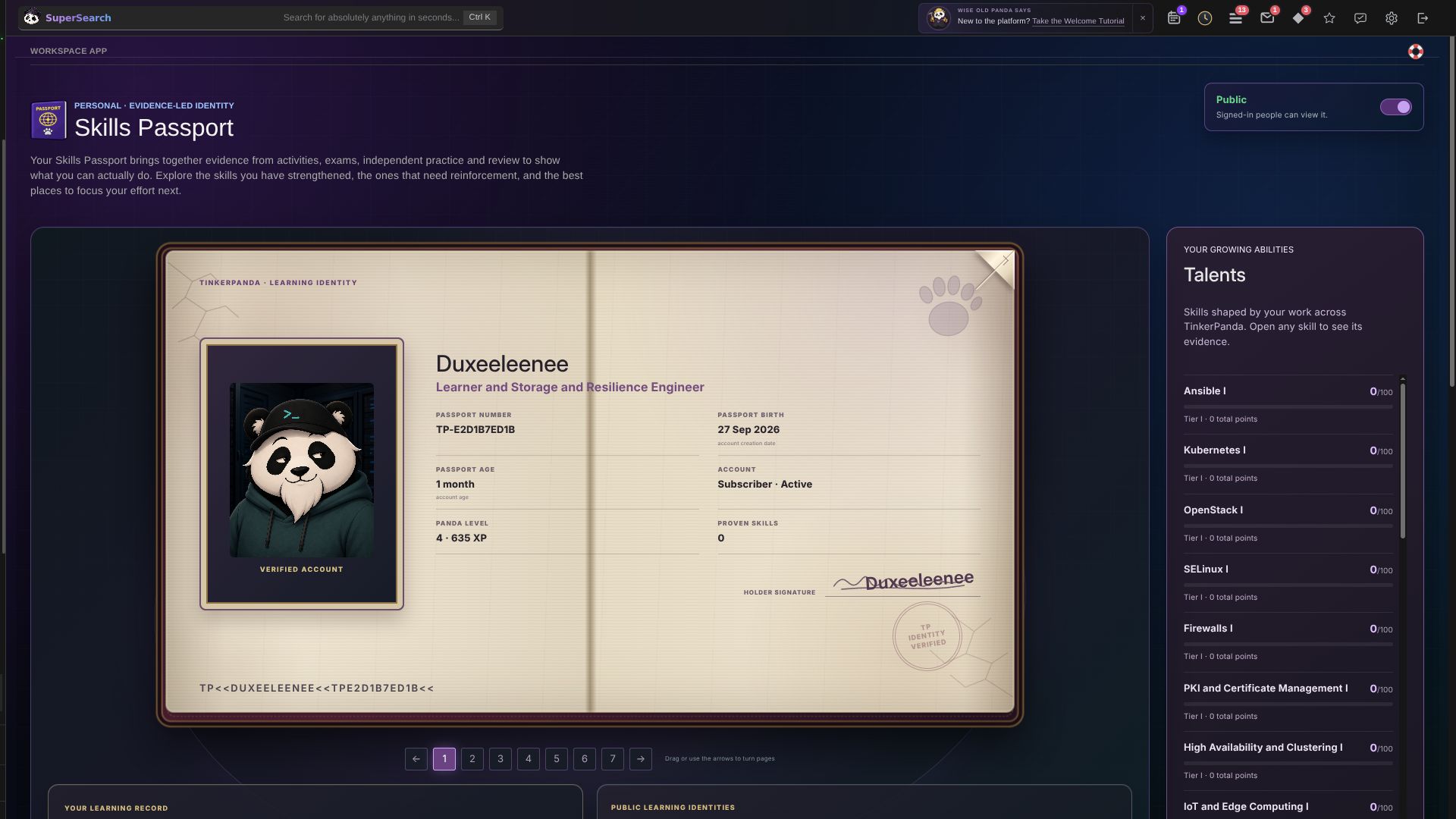
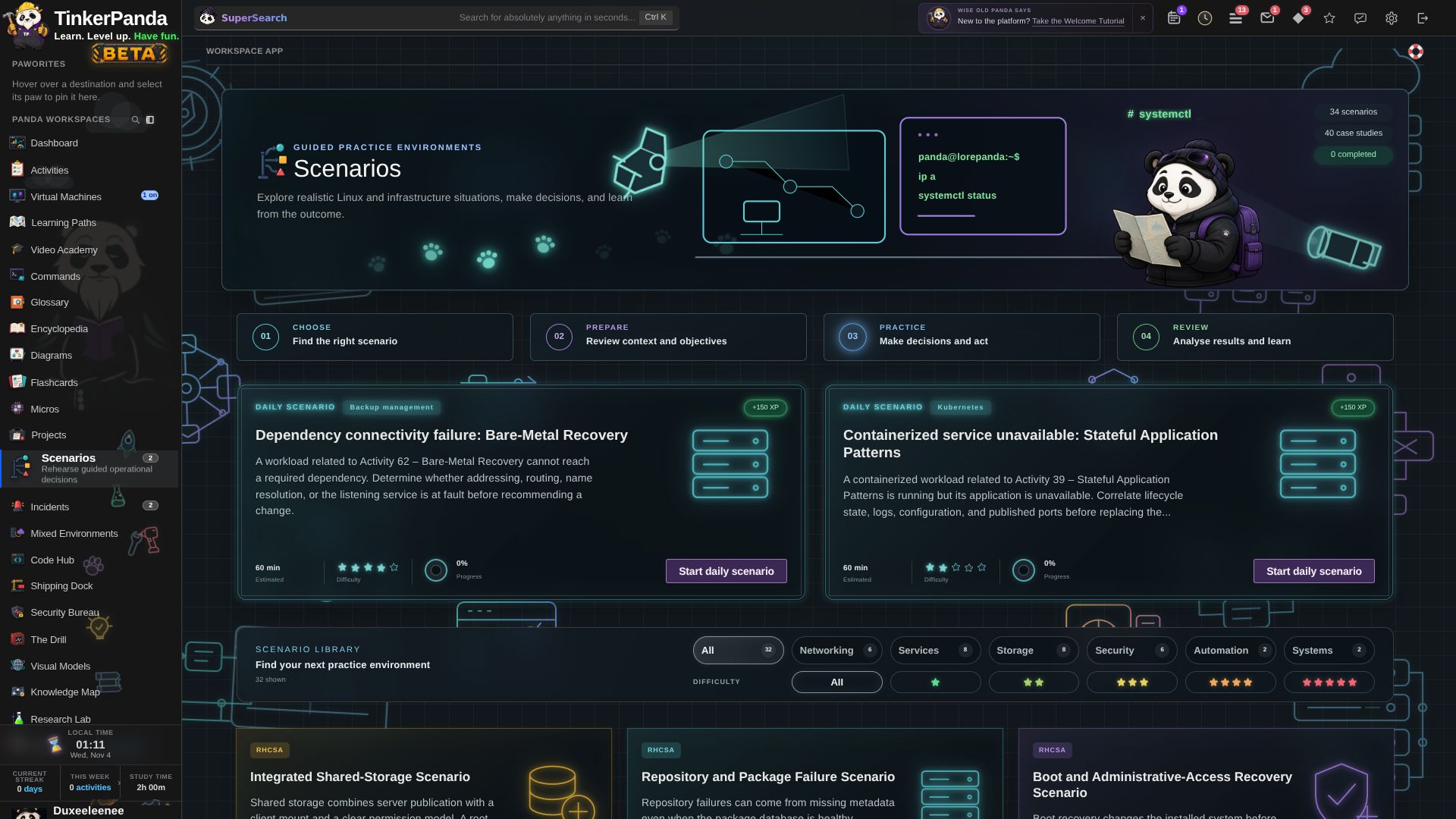
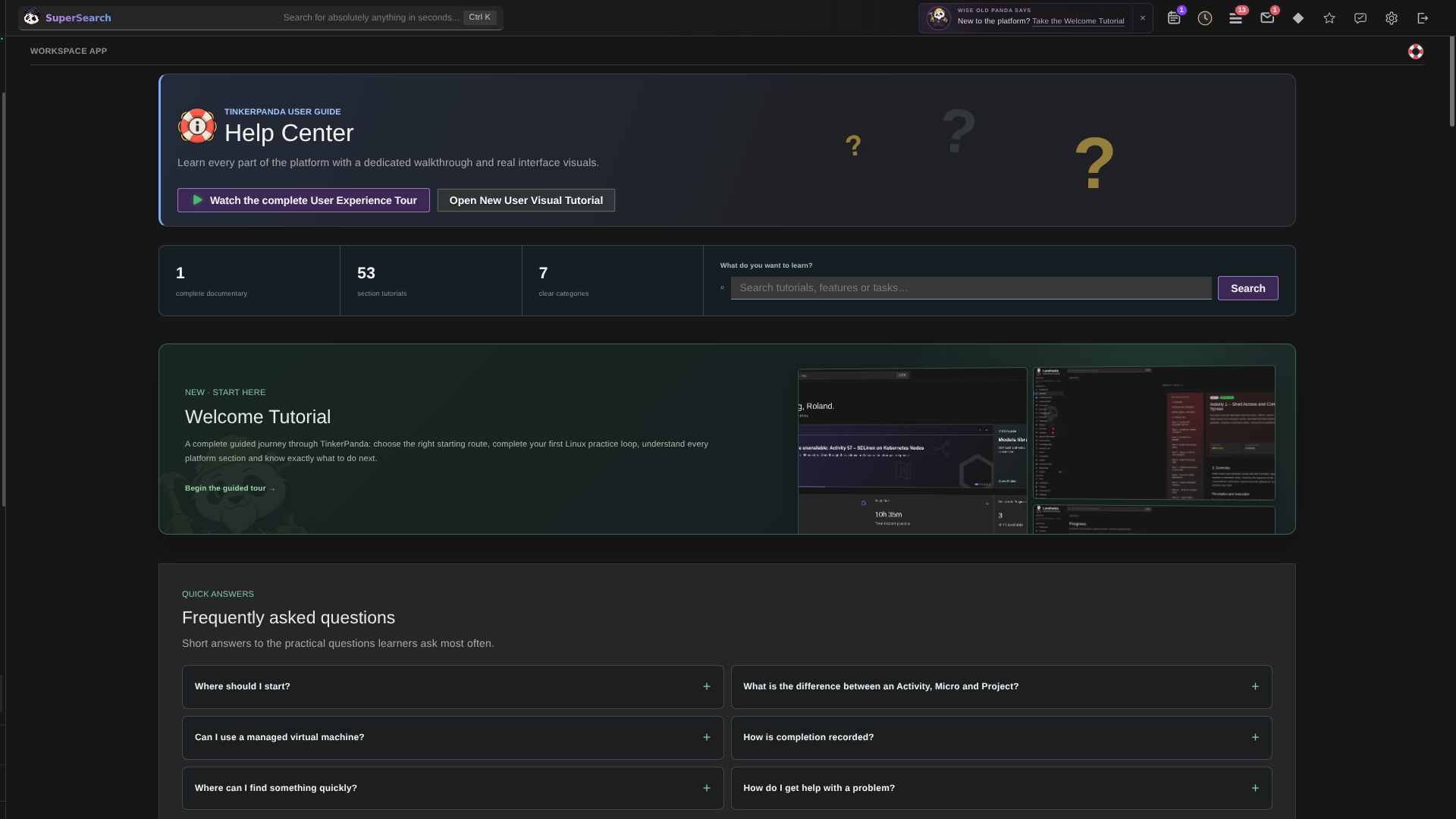
Take a ten-minute tour of TinkerPanda. Explore the tools, practical learning and connected workflows that help you understand a topic, put it to work and keep building your skills.
A video can introduce an idea. A reference can explain a command. Practice shows you what happens when you use it. TinkerPanda brings these experiences into one workspace, so you can move between them with a purpose.
Use explanations, diagrams and references to make the topic clearer.
Work through a task, a build or an investigation using the format that fits.
Return through reviews and recall practice, with your notes and progress close by.
Follow clues in a scenario and explain why you chose the next action.
Create a working solution through projects and Code Hub exercises.
Move from a lesson to its commands, diagrams and reference material.
Use quizzes and exams to find which topics need another look.
Save useful notes and bookmarks so you can return to them later.
Ask a question through support or study chat when you get stuck.
Explore the skills tracked in Skills Passport. Your learning and practice contribute to your record as you work through relevant material.
Related topics also support broader kinds of technical work.
Explore 39 app and content presentations. Each has three views: the workspace, its tools and the part it plays in your learning.
Move from a clear explanation to a practical task, with the tools and reference material close at hand.
Choose a role to work toward, follow its checkpoints and see how individual topics build into a larger skill.
Explore technical roles and job opportunities, then build a study plan around what you can already demonstrate and what you want to learn next.
Read a topic in depth, then return to a review that brings its main ideas together.
Practice a small administration workflow when you want a concrete result without a full lesson.
Use managed learner systems and a browser console for supported practical activities. Availability and resources follow your plan and the platform queue.
Build Bash and Python programs in steps. Read the concept, change the code and verify what your program does.
Bring several skills together in a service build, with stages and checks that keep the finished result in view.
Explore guided container recipes, inspect image identities and work with the platform's publishing and contribution controls.
Follow missions that cross machine and service boundaries, so you can understand how one dependency affects another.
Take on timed, linked incident missions with system-by-system objectives. Its simulated command evidence lets you rehearse the response.
Read the situation, inspect the supplied information and work through the reasons behind a response.
Work through a developing failure, decide what matters first and check the recovery before calling it finished.
Follow security objectives through tactical mission views, field kits and supported VM-side checks.
Start with a question, write a possible explanation and compare what your tests show in a saved research notebook.
Explore interactive models of real technical ideas, with components you can select and relationships you can trace.
Browse system diagrams and animated paths, then connect the picture with the commands and concepts it explains.
Move through a three-dimensional map of topics and resources. Follow a link when you need the idea behind the next idea.
Look up syntax, options and examples while keeping the task you are working on in mind.
Find a technical term or acronym and return to the material with a clearer understanding.
Use structured technical articles and related material to understand a subject beyond the current lesson.
 PandaSuperSearch
Find learning material and reference content across the workspace, with grouped results and previews.
Explore the platform's video catalogue and connect shorter viewing sessions with the wider learning workspace.
Use focused decks and quick review sessions to practice recalling the commands and concepts you have studied.
Use your review queue, Forgetting Radar and refresh plans to keep earlier learning in use.
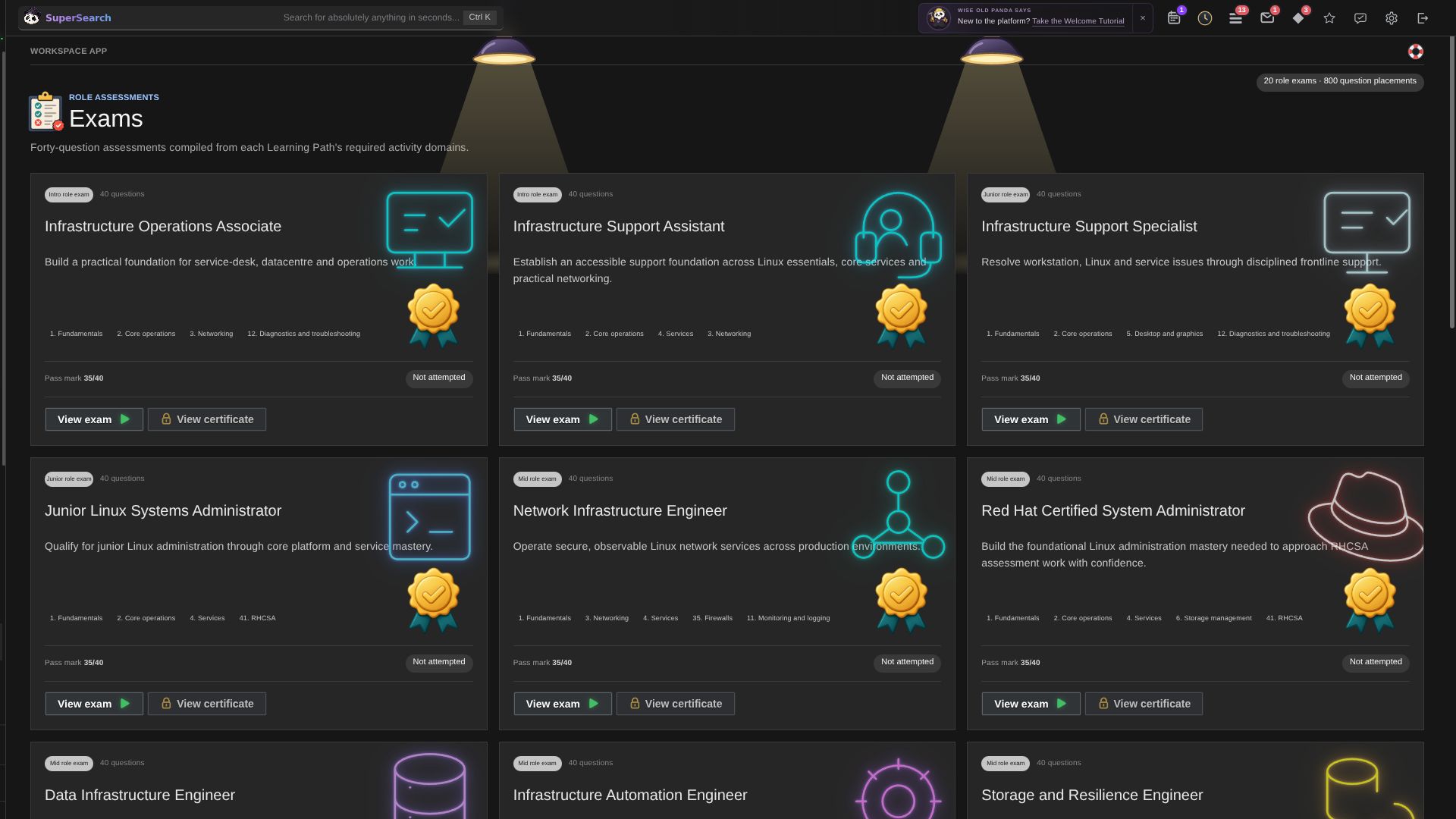
Take role-focused assessments, review the outcome and use the gaps to guide your next study session.
See the learning evidence and talents connected with your work across TinkerPanda. Use it as a study record, not a promise of professional certification.
See active work, recommendations and your progress together, then pick up where you left off.
Save private notes in the workspace and record what you learned while the technical context is still fresh.
Save useful destinations or reopen recent work when you want to continue an earlier thread.
Keep study and review activity in sight, and choose which platform updates deserve your attention.
Collect platform milestones and earned titles, and keep eligible completion certificates in your personal gallery.
Take on structured goals and see how ongoing participation contributes to your platform progression.
Goals and an introduction explain what the topic is and why it matters before you begin the practical work.
Practical steps connect a command with its purpose and the result to look for. You can follow what changed instead of just copying a line.
Troubleshooting links a symptom to something you can check. Exercises let you test your understanding and open a solution when you need it.
Key points bring the lesson back to its main ideas. Further reading gives you a way to explore the subject in more depth.
Activities teach a topic through practical steps. Reviews bring earlier ideas together, while lectures give you room to read an explanation in depth.
Notes and saved pages keep useful material close. Your progress helps you find where to continue, and recall practice gives earlier topics another visit.
Find community spaces, form study connections and follow progress with the people you choose.
Chat with study partners and use the available collaboration tools. Desktop assistance depends on participant permission and a compatible local setup.
Use private messages for direct conversations and the board for questions other learners can return to.
Ask the configured assistant or get an explanation of selected material. Check suggestions against the lesson and the system you are using.
Read technical articles, follow industry sources and see development notes from the team building TinkerPanda.
Use the welcome tour and task guides, or contact support from the public site and the learning workspace.
TinkerPanda brings practical learning in Linux, infrastructure, cybersecurity, programming and IT together with reference tools and your study record into one connected place. Other platforms also offer hands-on learning. The useful difference is how you want to move between explanation, practice and review.
| What matters to you | TinkerPanda |  Coursera |  Udemy |  KodeKloud |  Pluralsight |
|---|---|---|---|---|---|
| A connected technical workspace | Activities, reference tools and saved work share one workspace. | Guided Projects pair instructions with a prepared workspace. | Courses can include coding exercises and labs; availability varies. | Technical courses with integrated labs and playgrounds. | Courses with hands-on labs and sandboxes. |
| Practice beyond a course | Use Micros, Projects and incident scenarios for different kinds of practice. | Guided Projects offer focused practical tasks. | In-course labs provide guided practical tasks where offered. | Playgrounds provide environments for independent practice. | Labs, sandboxes and guided challenges support practice. |
| Reference beside your learning | Search Commands, Glossary and Encyclopedia alongside your study. | Check the resources included with your chosen project. | Resources depend on the course and instructor. | Check the resources for your chosen course or playground. | Check the resources included with the selected course or lab. |
| Come back and build on your work | Keep notes and bookmarks, track progress and return through Spaced Review. | Choose the project or course that fits your next goal. | Choose courses and practice resources for your goal. | Use courses and playgrounds to continue practicing a skill. | Use courses and hands-on environments to continue learning. |
| Learning paths | Follow role-focused paths with prerequisites and checkpoints. | Courses, Specializations and Professional Certificates organise related study. | Choose individual courses or collections offered through your plan. | Follow role-focused learning paths. | Follow curated paths and skill recommendations. |
| Ways to learn | Combine Activities, Lectures, Reviews and interactive diagrams. | Courses and Guided Projects offer different learning formats. | Instructor-led video courses can include exercises and labs. | Technical courses combine explanation with practical labs. | Expert courses combine with assessments and hands-on practice. |
| Remembering earlier topics | Return through Flashcards and Spaced Review alongside your lessons. | Review learning resources provided with your course. | Revisit course lectures and practice resources. | Return to course lessons and labs. | Revisit courses and use practice questions where provided. |
| Recognition and next steps | Track progress, achievements and earned titles; use Careers to plan your next step. | Earn course or programme credentials where offered. | Receive completion certificates for eligible paid courses. | Track course progress and earn completion certificates. | Use skill assessments to identify gaps and choose further learning. |
This is a comparison of learning approaches, not a claim that other platforms lack features. Course content and lab access vary by plan. TinkerPanda managed VMs require eligible membership, approval and available capacity.
Official sources · checked 4 November 2026: Coursera Guided Projects · Udemy labs · KodeKloud playgrounds · Pluralsight hands-on learning · Coursera programmes · Udemy Personal Plan · KodeKloud learning and certificates · Pluralsight paths and assessments
A small result gives you somewhere to build from. Your progress record, milestones and earned titles help you see those results and decide what comes next.
The Progress page brings completed learning and work in progress together. Use it to choose what to continue, rather than starting your search again.
Achievements recognise specific actions across the platform. They give you smaller goals to work toward alongside a complete course or learning path.
Learning paths show prerequisites and checkpoints. Completing the required work and assessments can unlock a role title you can display on your profile.
Titles and Honors shows the learning path, Panda level and role exam required for each title. Once earned, you can choose a title to display with your name.
Skills Passport brings your learning record into one view. Use it to see where you have practiced and where another session could help.
Reader tools, saved work, study choices and community controls. Related features are grouped here so you can explore the depth without a wall of repetition.
Concepts are organised into readable, structured learning sections.
Every workflow connects an action to an object, evidence and decision.
Quizzes test understanding before completion is recorded.
Supported Activities attach directly to the learner VM environment.
Save working observations beside the material that produced them.
Progress, ratings and finished work remain attached to the learner account.
Follow connected domains toward a named infrastructure role.
See required domains, Panda level and exam gates before committing.
Track 25%, 50%, 75% and final completion milestones.
Keep one chosen route prominent and continue from its next requirement.
Completed paths unlock durable titles for the learner profile.
Practice a focused administration task without opening a full course.
Move from safe preparation through evidence and verification.
Each command explains why it is used and what its output proves.
Resume the exact point reached in every Micro.
Rate completed workflows and update the rating later.
Study long-form material in a dedicated, distraction-controlled reader.
Browse and filter the lecture catalogue by practical subject.
Mark Lectures complete and include them in durable progress.
Record usefulness after completing a Lecture.
Move from explanation to connected Activities and reference material.
Build command-line, scripting and programming understanding in small units.
Complete larger browser-guided projects with an operational outcome.
Prove expected results before a project is treated as complete.
Separate code snippets, concepts and practical builds quickly.
Scores and perfect verifications contribute to learner recognition.
Use long-form architectural and operational reference material.
Discover a rotating, date-stable selection of useful articles.
Narrow the catalogue without losing alphabet or pagination context.
Use polished system visuals where relationships benefit from a map.
Continue into Activities, Scenarios, Incidents, Projects and other articles.
Look up concise Linux and infrastructure terminology.
See complete forms for strict technical abbreviations.
Filter terms using categories derived from the current catalogue.
Add a missing contextual term after a meaningful definition is obtained.
Jump between a Local Glossary entry and its occurrence in the text.
Find commands by name, task or operational purpose.
Review flags and parameters in compact, readable reference tables.
Connect syntax to the job it performs.
Exact command searches surface command results before broader matches.
Move from a command entry back into related learning.
Follow current Linux, security and infrastructure reporting.
Limit the feed to the publishers relevant to the learner.
Read durable editorial material inside the same workspace.
Connect changing industry events to stable technical knowledge.
Find articles and news through PandaSuperSearch.
Learn the workspace map and choose an appropriate starting point.
Select a starting path from current Linux experience.
Open guidance for platform workflows without leaving the product.
Use concise answers for common learner and account questions.
Reach support and feedback from the shared workspace chrome.
Work in account-assigned KVM/QEMU learner environments.
Open an authenticated graphical console without a separate client.
Inspect CPU, memory, disk and network history.
Start, stop and restart only the systems assigned to the account.
See the live app or mission currently using the machine.
Understand disconnected, starting, online and unavailable states.
Build a complete server application or network service.
Combine foundation work with a final commissioning Activity.
Prove configuration, persistence, security and client reachability.
See current work and continue from the next required step.
Turn finished builds into durable progress and recognition.
Choose the next action from a realistic operational situation.
Use presented symptoms and results instead of guessing.
Return to rotating practice with points for successful decisions.
Analyse a complete technical situation and its trade-offs.
Keep successful attempts and earned rewards on the learner account.
Investigate realistic service and infrastructure breakdowns.
Practice prioritisation without hiding the available evidence.
Select actions that restore service safely.
Confirm the system state after the repair.
Successful response contributes XP and progress evidence.
Work through linked systems in a single escalating recovery mission.
Prioritise evidence and recovery actions while the operational clock runs.
Unlock the next system only after proving the current recovery step.
Use deterministic checks that teach what a command proves without executing it on the host.
Completed operations award XP; failed attempts apply an explicit cooldown.
Work across several technologies inside one operational environment.
Connect network, identity, service and validation work.
See how a change in one system affects the others.
Follow a staged brief without reducing it to isolated commands.
Record the finished environment as applied learning.
Progress from foundation work to advanced defensive operations.
Complete four, five or six evidence-led goals by mission tier.
Use a system map alongside the changing security situation.
Run purposeful commands and prove the observed result.
Open focused operational toolsets from the Bureau hub.
Advance from probationary status to Bureau Elite.
Learn Docker, Podman, containerd and Kubernetes workflows.
Store versioned Containerfiles and orchestration recipes.
Use SHA-256 identifiers to verify recipe versions.
Keep recipes private or publish them to the in-site marketplace.
Propose community improvements for the recipe owner to assess.
Move from a technical question to a defensible conclusion.
Record a prediction and at least one plausible alternative.
Gather evidence across multiple investigation stages.
State the conclusion, confidence, limitation and recommended action.
Preserve the expedition record while moving between stages.
Test knowledge across the domains required by a career path.
Begin when the relevant role requirements are satisfied.
Answer without inline hints or immediate correctness prompts.
Keep results as part of the learner record.
Use a passing score as the final role-path gate.
Explore Kernel, TCP/IP, systemd, containers, storage, identity and Netfilter.
Jump directly to a matching component across every model.
Follow important flows through connected system objects.
Investigate failures with contextual system detail.
Save and update a private rating while viewing the aggregate.
Browse diagrams that explain technical structure and flow.
Open supported diagrams as full-size interactive explorations.
Follow state and data through complex subsystems.
Control supported animations while inspecting detail.
Record a diagram as studied directly from its viewer.
Navigate the relationships across the learning catalogue.
Enter a subject cluster and inspect its connected content.
Show Domains, Activities, Scenarios, Incidents or Encyclopedia entries.
Find a node without manually orbiting the full universe.
Adjust movement, reset the view and navigate with drag and zoom.
Search learning, reference, community and personal destinations together.
Limit results to the exact content family required.
Choose best match, alphabetical or date ordering.
Inspect a result before leaving the current page.
Open search and move through results without relying on the pointer.
Collect selected results from searches in private, renameable lists for quick return.
Ask for help while retaining the surrounding learning context.
Explain a meaningful selected term in place.
Simplify a longer selected passage within configured limits.
Reuse prior contextual answers instead of generating them repeatedly.
Administrators define model access, limits and instructions.
Choose Activities, Domains, Lectures, Micros and applied content.
Extend reviews through 1, 3, 7, 14, 30, 60 and 120 days.
Surface the five memories most likely to be fading.
Turn recall risk into a short, focused retrieval session.
Inspect review material without repainting the whole workspace.
Recommend earlier completions and related learning privately.
Practice fast retrieval by subject and content group.
Start a compact review session without setup overhead.
Move directly to the deck relevant to the current goal.
See movement through the active deck.
Return to useful prompts whenever recall needs strengthening.
Keep durable learning notes inside the platform.
Attach notes to the Activity or article being studied.
Highlight, annotate, undo, define or hear selected text.
Listen to supported learning passages from the reader.
Read supported content one section at a time.
Collect the terms relevant to the current article.
Keep useful Activities and reference material easy to return to.
Reopen recently visited platform content.
Review finished work over a chosen period.
Open the week activity history from the sidebar.
Resume learning without remembering the original route.
See learning evidence across every supported content type.
Measure activity completion inside each curriculum domain.
Track commissioned services and the next required step.
Separate Activities, Lectures, Projects, Incidents and other work.
Connect completed work to the learner progression system.
Identify what is active, complete or ready to continue.
Unlock recognition for meaningful platform actions.
Earn named infrastructure titles through complete learning paths.
Choose which earned title appears with the learner identity.
Record completed service builds and category milestones.
Keep formal completion artefacts in one personal gallery.
Use XP and levels as visible evidence of sustained work.
Apply learning to bounded goals beyond a single lesson.
Earn points through current Scenarios and Incidents.
Compare accumulated progression evidence.
Carry challenge outcomes into Progress and Achievements.
Return to fresh operational prompts over time.
See upcoming learning and review activity.
Read account, learning and platform messages in one place.
Quiet notification previews without disabling the workspace.
Choose wellbeing, recommendation and social updates.
Reduce the feed to administrator and account-security notices.
Ask durable questions that remain useful to other learners.
Respond with focused technical guidance.
Keep public contributions reviewable and manageable.
Show the learner avatar, title and contribution history.
Return to prior community knowledge when a problem repeats.
Subscriber accounts can exchange focused private messages.
See when a conversation needs attention.
Open messages from both the top bar and navigation.
Retain the technical context of a learner conversation.
Receive direct-message alerts without exposing them publicly.
Organise collaborative learning around a shared group.
Open participant profiles and current platform identity.
Add or remove trusted members from social context.
See milestones only from the learner and accepted friends.
Remove unwanted social and notification relationships.
Apply learning and interface choices only to the signed-in account.
Choose the character used across profile and community surfaces.
Select an earned title for the learner identity.
Control toolbar, glossary, ContextSense and default Focus Mode.
Choose PandaBlurr and sidebar intensity.
Review membership, join date and personal status.
Receive short prompts related to the current destination.
Choose quiet, balanced or frequent appearances.
Keep Wise Panda available while navigating the workspace.
Choose from the character styles available to the account.
Click the companion for a fresh page-specific learning idea.
Use the learning workspace across wide and narrow screens.
Switch between Classic, Zoom and Spotlight navigation.
Collapse the desktop rail while preserving an easy reveal edge.
Replace supported animation with a stable presentation.
Navigate search, readers, models and dialogs more efficiently.
Enable or disable the shared glass interface treatment.
Check whether the platform is available or degraded.
Review recorded incidents, maintenance and resolutions.
Read concise notices about meaningful product changes.
See planned windows and any action a learner should take.
Keep notes, reviews, settings and progress bound to the account.
Protect personal and administrative routes behind a session.
Limit member milestones to the learner and accepted friends.
Identify AI-assisted features while retaining human responsibility.
Use a visible, sequential entry path through core content.
Unlock the complete learning and applied-practice workspace.
See what exists and why an item is unavailable.
Explore roles across systems,cloud,security and other technical fields.
Filter available opportunities by role,location,experience and other job details.
Turn your goals and examples of existing work into a more focused plan.
Keep track of the opportunities you have marked as applied.
Use learning paths,projects and Skills Passport as part of your preparation.
Keep a study chat beside the work you are discussing.
Draw an idea together with colours and drawing controls.
Add tasks,mark them complete and keep the next action visible.
Request desktop sharing or control with permission and a compatible local setup.
Focus Mode, read aloud, an in-reader glossary and selection tools help you stay with the material.
Private notes, saved destinations and recent history help you return without retracing every step.
Chat, whiteboard collaboration and permission-based PandaAssist keep useful help near the task.
You can start with core Linux topics or follow a role-focused path. More advanced work is available as your understanding grows.
No. Reading, diagrams and many learning tools work directly in the browser. Supported practical tasks can use managed VMs; some specialised work needs a suitable external system.
Access depends on the membership and feature. Check the current Cub and Citizen comparison before choosing. Managed machines are subject to approval, available capacity and platform limits.
Compare membership →It records work and achievements within TinkerPanda. Platform titles, certificates and Skills Passport are learning records; they do not replace an external vendor certification.
Start with a Learning Path for a technical role, or browse Activities by domain when you have a specific topic in mind. Each path shows its prerequisites and checkpoints.
Yes. Use Notebook for your learning notes and Bookmarks for useful pages. Recents helps you reopen material you visited, while Progress shows the work recorded on your account.
Open Help Center for platform guides or use Live Chat to contact support. Study chat and the Message Board also give you places to discuss a technical question with other learners.
Achievements recognise milestones across the platform. Role titles have their own requirements, which can include a learning path and an exam. The Titles page shows what you need and lets you choose an earned title to display.
Yes. Micros focus on a small task, while Commands, Glossary and diagrams help with a specific question. Access depends on your account and the prerequisites of the material you choose.
After 15 minutes without input inside the VM, TinkerPanda saves its state and pauses it. Resume it to continue your work. Signing out requests a graceful shutdown; resuming may wait for available capacity.
 YOUR NEXT CHAPTER
Start with a question. Find the explanation.
Stay for the moment it clicks.
 Activities
 Commands ↗
 Virtual Machines ↗
 Spaced Review ↗
 Learning Paths
 Progress and Dashboard ↗
 Skills Passport ↗
 Projects ↗
 Library, Lectures and Reviews
 Glossary ↗
 Micros
 Notebook ↗
 Security Bureau ↗
 Code Hub
 Shipping Dock ↗
 Mixed Environments
 Incidents ↗
 Knowledge Map ↗
 The Drill
 Exams ↗
 Scenarios and Case Studies
 Research Lab ↗
 Encyclopedia ↗
 Visual Models
 Diagrams ↗
 Flashcards ↗
 Achievements, Titles and Certificates ↗
 Calendar and Notifications ↗
 Bookmarks and Recents ↗
 Social Hub, Teams and Friends ↗
 Challenges and Rankings
 PawMail and Message Board ↗
 Help Center and Support ↗
 AI Assistant and ContextSense
 Articles, Enterprise News and Blog
 Learn
 Plan
 Connect
 Personalise
 Trust
 Trust